
Discover how transcriptionists are transforming their craft, moving from manual typing to expert proofing with the power of speech-to-text. This keynote explores the evolving role of the modern transcriptionist, offering insights, tools, and strategies to thrive in an AI-assisted workflow without losing the precision and professionalism that define the craft.
Transition from Typing to Proofing

S1- Okay. Hi everybody. This is the webinar on transitioning from typing to proofing. I'm going to quickly share my screen with you guys. Okay. So before you transition to proofing a transcript rather than typing it from scratch, what you most likely you're going to do is you're going to open whatever template you have. Maybe you don't even have a template. You're just going to start filling out your cover page and everything manually, and then you're just going to start typing from scratch manually. What you want to do instead when you are now transitioning from a typist to an editor. So the first thing you want to do is you want to process your transcript through a speech to text. And what you can use is Claudio. So in order to process a file through Claudio, this is what it looks like when you first create an account. This is Claudio web. What you want to do is you want to search for a choose a job profile so you can choose the general transcription profile. This. Also, these are smart formatting options, so it allows for you to choose what the formatting of your transcript looks like. So you can have double spaces after sentences or single spaces. Whatever the formatting of your transcript requires, you can add speaker labels or not. So if you want to add speaker labels, it will try to identify each speaker as a new speaker. If you don't add speaker labels, then just one big chunk of text kind of appears just one big paragraph. You can choose if numbers from zero to nine are spelled out, or zero to 10 are spelled out, or all numbers numbers are digits. You can choose your time setup. You can choose your date format. You can decide whether you want contractions kept in or expanded. You can choose your salutation format. So miss or miss, with, with or without a period. You can keep verbatim speech or you can fix grammar errors. You can remove speaker pauses or you can keep them so the US ums. So once you choose what your smart formatting options are. You're going to press confirm and continue and then you're going to select a file. The audio file that you want. Spit out by Claudio. And then you're going to upload it. And then you're going to press submit. And you can see that the job has successfully successfully been submitted. If you press view job status, you can see right here that the audio I just submitted is in progress. It's a very short audio so it should be complete very soon. And as soon it is as it is complete you will be able to download it here. In the meantime, what you can do is you can start setting up your cover page. So if you have a template already filled out that, you know, there's just some certain highlighted portions that you need changed. Every time you work on a new file, you can start changing those. And then here is where you can paste your transcript once it has been processed. So it's still in progress. There we go. It's completed. So now I can download it and it will be saved within my downloads so I can open it. And here is the text that I. Just processed. So if I highlight it and copy it then I can paste it within my template. And now I can get started on editing it rather than typing from scratch. So the first thing you want to do is you want to set up your media player that you use. So if you use Express Scribe that is what I've been using. Then you want to first make sure that your foot pedal settings are correct. So in order to change your foot pedal settings, you just want to go to Options and Controller and then you'll be able to change your foot pedal settings here so you can allow for your left pedal to either rewind or fast forward, or even play or pause whatever you're comfortable with. I like my left pedal to rewind, my right pedal to fast forward and my middle pedal to be play and pause while my foot is on it. It is playing as soon as my foot is released. It pauses and it not only pauses, but it also jumps back by a second. So if I needed to go back just a few seconds, I could technically just hit my middle pedal like a bunch of times and it would just go back a few seconds in order for that to occur. You would want to go to options playback, and then this auto back step on stop would have to be at 1000. That just means one second. You can also change your display settings so you can see right now that if I had an audio within my express scribe, which I can actually just quickly add. This and add the audio. You can see that my formatting is seconds, minutes and hours. You can change that formatting if you want in your display seconds. So you don't have to have a leading zero. You can just do minutes and seconds. You can do milliseconds. You can change that here. And then if you want to add a timestamp, you can use Express Scribe to copy and paste the time into your word document without having to manually enter a timestamp either. So I want my prefix to be the open triangular bracket and my suffix to be the closed triangular bracket, and I want to now add that timestamp within my my word document. I have a shortcut key attached or a hotkey attached to Express Scribe F1. What this does is it copies the time, so it's going to copy whatever time is shown down here. So if I hit F1 and then I hit control V within my word document, my timestamp will now be paste pasted so I don't need to manually type it in every time I can just hit F1 and then control v, I don't even need to be live within Express Scribe for that to work I can be live on Ms. word still hit F1 it will still copy the time and express scribe. So as soon as your foot pedal is all set up and your media player is all set up, then you can go ahead and you can start transcribing. And again you want to transcribe using your keyboard shortcuts. You do not want to follow along with your mouse and your eyes only. It will take a lot longer and you'll probably miss a lot of errors that might have been might come up. So again right control, right arrow key jumps words and then control left arrow key also jumps words. If I wanted to delete something I could use my shift control right arrow key and then backspace shift control left arrow key just does the same thing going the other way. My shift F3 toggles between states lowercase capitals, just the first letter being capitalized. So that is essentially how you're going to edit your Claudio transcript. And then you're obviously going to use your keyboard shortcuts, sorry, your hotkeys as well. So the hotkeys that are embedded within your template. Every time a new speaker appears you can use different hotkeys rather than having to just press enter and manually type them. So that's essentially how you go from being a typist, where you're doing everything manually to having AI assist you. So like hotkeys speech to text, keyboard shortcuts, it will all improve your productivity and you'll be able to complete a lot more files than you would have before. So yeah, that's basically it. What you can also do within Claudio is let's say you have your own template that you want. Let me control Z everything. Let's say you had your own template that you want uploaded. If you go to profile and then you just search for like the general transcription profile, you can clone it and you can create your own profile. So this is going to be Val's test profile. I'm going to clone it. And now if I go back to my profiles I will be able to. Why did that not work? Clone. Profile. Okay. It looks like it's not working. Don't know why that's the case. All right, let's just say, for example, that this was my. This was my profile that I just cloned. What I can do is I can add capitalization settings. So every time these words get mentioned, they will get capitalized. The first letter will get capitalized. Title case phrases will get capitalized. So all the words, all the first letters within the words that get mentioned get capitalized. I can add words where all capitalizations, all the all the letters will get capitalized. I can have language settings again, my smart formatting settings, so they will always be the same. I don't have to change them every time I upload audio to this profile. If I want to use the speaker label option, then I can format the way the speaker labels look. And then this is where you would add your template. So the template that I was just using, I can upload this template to Claudia Webb where I want the transcript to appear within the template as long as there are these form of brackets, two of them with the word transcript. In between this the Claudio text will get replaced. So this will this will get removed and the Claudio text will get replaced. So I could upload my template just press replace file, upload the template that you want and then press update. And now you can use you can have your own template within Claudio Web. And every time you use that profile the transcript gets spit out in the template and you don't have to copy and paste the Claudio text into your transcript like I did when I first showed you the example. So that's essentially how you transition from becoming an editor, sorry, from a typist to an editor using Claudio. So yeah, 10 minutes has gone by. Thank you guys very much for attending and I hope you guys attend the rest of the sessions that we have today. Thank you.

Meet the speaker
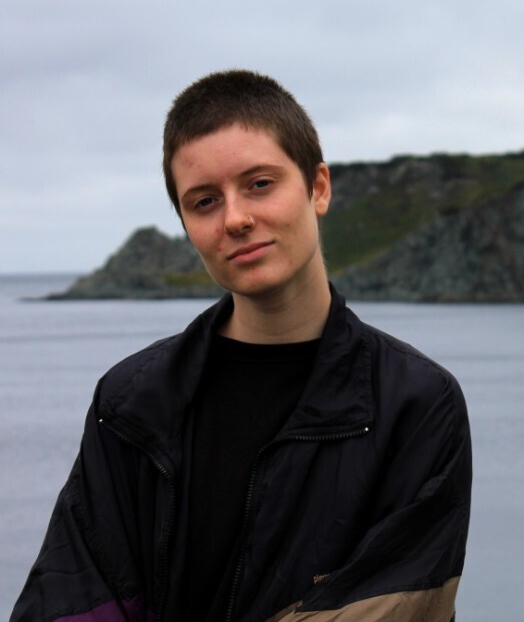
Valentina Bianco
Training & Community Lead at Loom Analytics
Valentina Bianco is an Authorized Court Transcriptionist with the Province of Ontario, bringing five years of experience in the field. Her expertise extends to her role as a Training and Process Improvement Lead, where she has successfully managed transcription teams while optimizing productivity and profitability. Valentina has played a pivotal role in assisting client teams with the seamless transition of their typists to editors. Through targeted upskilling in MS Word, she has empowered teams to adapt to new workflows, positioning them to excel in AI-enabled digital transcription environments.